Kandev documentation
Developer Tools
Use quick chat, utility agents, saved prompts, voice input, editors, language servers, and task terminals.
Kandev includes short-lived chat, reusable AI helpers, dictation, file and editor integration, language servers, and terminals. Some tools run in a task environment; others run on the Kandev backend host or in the browser. That boundary determines which files, executables, credentials, and network services they can reach.
Quick path
- Use Quick Chat for disposable questions.
- Use a task session for work that needs files, review, or workflow state.
- Add utility agents, editors, language servers, or terminals only when their host boundary is acceptable.
Configure Apprise notifications
To detect Apprise after you install it, open Settings > Preferences > Notifications and select
Rescan Apprise under External Providers. Kandev checks for the apprise executable in the
environment of the running Kandev backend. When it is found, Add Apprise Provider becomes
available. Rescanning does not save notification drafts or send a notification.
If Kandev does not detect Apprise, check the PATH used by the backend process. If you install
Apprise in a directory already in that PATH, rescan. If you install it elsewhere or change PATH
after Kandev starts, restart Kandev so the running backend receives the new environment, then rescan.
Each provider save applies its name, enabled state, settings, and selected events together. If validation fails or saving is rolled back, the provider's previously saved configuration remains intact. An aborted creation leaves no partially configured provider. If the connection fails while saving, reload the settings to confirm the saved state before retrying, especially when adding a provider. Saves for separate providers are independent.
Configure webhook notifications
Open Settings > Preferences > Notifications and select Add Webhook Provider. Enter an HTTP or HTTPS endpoint. Add request headers or a secret when the endpoint needs them. Select the events that the provider must receive, then save the settings.
Kandev sends a POST request with a versioned JSON body. For example:
{
  "version": "1.0",
  "event": "session.turn_finished",
  "title": "Agent turn finished",
  "message": "The agent finished a turn.",
  "type": "info",
  "fields": {
    "task_id": "task-123",
    "task_session_id": "session-456",
    "occurrence_id": "turn-789"
  }
}
The fields object contains the IDs that are available for the event. Kandev
omits an ID when it is empty. A configured Authorization header takes
precedence over the secret. If there is no such header, Kandev sends a non-empty
secret as Authorization: Bearer <secret>.
Save the settings before you select Test. The test sends the saved configuration.
By default, Kandev rejects destinations that resolve to loopback, private,
link-local, multicast, or other reserved addresses. Kandev also refuses
cross-origin redirects, so credential headers do not reach another origin.
Private or local destinations need an operator opt-in. Set
notifications.webhookAllowPrivateNetworks: true in config.yaml, or set
KANDEV_WEBHOOK_ALLOW_PRIVATE_NETWORKS=true in the backend environment. This
setting applies to the whole backend process. Kandev reads it at startup, so
restart the backend after you change it.
Use CLI passthrough on a phone
Open a task running in CLI passthrough mode. Its connected terminal shows the same navigation keys as a task terminal: Ctrl, Shift, ^C, ^D, Esc, Tab, arrows, and other terminal keys. Swipe the row to reach more keys.
Tap Ctrl once to modify the next input, twice to keep it enabled, and again to turn it off. Shift followed by Tab sends reverse Tab. Keys go directly to the visible agent terminal and do not create a chat message.
The row reserves space below terminal output and stays above the software keyboard. Opening Chat or Comments hides the row and clears modifiers. It returns when those panels close and the terminal is connected. Switching away from the terminal also clears modifiers. Desktop input remains unchanged.
Quick Chat
Quick Chat is an agent conversation outside the board. Use it for repository orientation, experiments, and disposable questions that do not need workflow state, review gates, dependencies, or a delivery record.
Comment on an agent reply
In Task Chat or Quick Chat, select text from a settled agent prose reply, then select the comment button that appears beside the selection. The editor works like plan comments: enter feedback and choose Add to keep it as pending context, or Run to send it immediately. Pending selections use the same inline highlight and comment badge as plans; select either one to update or delete the feedback. Pending message comments are kept for the current browser tab, appear as composer context chips, and are included in the next prompt as Markdown. If the agent is busy, Run queues the feedback for its next turn.
Inline comments are available only on ordinary settled prose. Streaming replies, tool/thinking/status output, plans, rich-block content, raw views, and user messages do not accept inline comments.
Reference tasks and work items
In Task Chat or an ordinary structured Quick Chat, type # at the start of a line or after whitespace, then enter part of a title or key. Kandev searches the active workspace's tasks and connected Jira, Linear, GitHub, GitLab, Azure DevOps, and Sentry sources. Results stay grouped by provider and type; a disconnected or slow provider does not hide results from another source.
Use the arrow keys and Tab or Enter, or select a row with pointer or touch. Selection inserts a chip without sending. The chip survives draft reloads and becomes a clickable reference after explicit send; messages queued while an agent is busy keep the same reference metadata. CLI-passthrough chat leaves # as literal text and does not search.
Use @ for files, saved prompts, and the current plan. New task lookup is under #; existing saved or sent @task references remain readable and sendable.
Select Quick Chat beside New Task in the expanded sidebar, or select its standalone row in the collapsed sidebar.
On a phone, open the hamburger app menu from a listing, task workbench, or shared page, then select Quick Chat or Quick terminal. The menu closes before the tool opens. The topbar menu button shows Quick Chat activity: a blue dot while a chat is running and a green dot when a reply is ready to read. Terminal tabs do not contribute to this activity indicator.
On a phone, Quick Terminal includes the same shortcut row as a task terminal: Ctrl, Shift, ^C, ^D, Esc, Tab, navigation keys, and symbols. Swipe the row to reach more keys. Tap ^C to interrupt a command. Tap a modifier once for the next input, twice to keep it enabled, and again to turn it off. Shortcuts target the selected terminal and keep the keyboard focused. The row stays above the on-screen keyboard. Modifiers reset when you switch terminal tabs or close the view.
Start a chat
- Enter a non-empty opening prompt. Add files when they help explain the request. Wait for each file to finish uploading before selecting Send. Retry or remove a failed upload first.
- Choose an enabled agent profile. Quick Chat uses the workspace default when available.
- For an ordinary Quick Chat, select + beside Attach to choose a workspace repository. Each selected repository appears as a removable chip inside the prompt box.
- Choose a branch for each repository. Do not add the same repository twice.
- To inspect or change Kandev settings, workflows, agent profiles, or MCP configuration, select the settings icon beside Attach. Hover or focus the icon to read its description. On phones, the icon opens a sheet with that description and the Configuration chat switch. This option is hidden when the workspace already has a configuration conversation.
- Select Send. Quick Chat creates the conversation and delivers the opening prompt.
Quick Chat keeps the prompt, files, profile, and repositories in the setup after a creation error. Correct the problem and select Send again. After a conversation exists, a delivery error keeps the opening prompt in that chat for an explicit retry.
If Kandev recognizes a terminal rate-limit error that it can retry safely, Quick Chat retries the accepted message up to five times. A status card shows progress and lets you cancel.
Configuration Chat does not use repository selections. Its existing workspace permissions and Settings entry point remain in effect.
Each selected repository gets an isolated worktree from the chosen branch. Uncommitted changes in your original checkout are not copied. Without a repository, Kandev creates an ephemeral working directory under <KANDEV_HOME_DIR>/quick-chat/ (by default ~/.kandev/quick-chat/).
Quick Chat supports multiple tabs, tab renaming, and + to open another ordinary-chat setup. When you switch conversations or terminals, the selected tab is brought into view; you can scroll the tab row to browse others. Structured profiles show ACP chat; CLI-passthrough profiles show their PTY interface. The desktop window is resizable, while mobile uses a full-screen view.
Your chats and their names are shared by every browser and device signed in to the same Kandev instance. Starting, renaming, or closing a chat on one device updates the others, and a device that was offline catches up when it reconnects.
When Settings > Preferences > Task Behavior > Tasks > Agent-generated task titles is enabled, an ordinary Quick Chat starts with its normal provisional label and its owner agent can replace that label with a short title based on your first request. Structured and CLI-passthrough chats receive the title instruction through their existing first-turn path. The new title appears on every connected device and survives reload. Configuration Chat and Quick Terminal are excluded. If you disable the setting, or rename the chat first, the provisional or user-selected title remains authoritative.
Closing a real chat tab permanently deletes its conversation and hidden backing task data. By default, it also removes the associated worktree. If the worktree has local changes, select Permanently discard tracked and untracked changes to remove it, or select Keep workspace files to retain the files. There is no undo for the conversation or task.
Kandev also deletes abandoned chats after seven days; cleanup runs when the backend starts and then once per day. Only chats whose session is RUNNING or IDLE are protected from age-based cleanup. Old CREATED, STARTING, or WAITING_FOR_INPUT chats can expire, so do not use Quick Chat for durable work.
If Send stays disabled, complete these steps:
- Enter a prompt.
- Select an enabled profile.
- Complete every repository and branch row.
- Wait for each attached file to finish uploading. Retry or remove a failed upload.
If a repository is missing, make sure that it belongs to the current workspace. Then refresh the repository configuration. Use a normal task when the result must remain visible on a board or become a reviewed PR.
Agent continuation goals
Some ACP agents keep an explicit goal after a reply. When the selected task or Quick Chat session reports an active goal, Kandev shows a Goal Active chip above the composer. Select the chip, or focus it with the keyboard, to read the goal and its status. The details explain that the agent may continue automatically between replies. They do not provide a wakeup time or change the agent's goal.
The chip remains visible while the provider reports the goal as active, including while the session is idle. Completion, clearing, pausing, blocking, or a usage limit removes it. On a phone, select the chip to open the details in a drawer. The drawer keeps long goal text inside its own scroll area.
Utility agents
Open Settings > Utility Agents (/settings/utility-agents). Utility agents are one-shot ACP calls used to generate small pieces of text; they do not create a durable task conversation.
The built-in actions are:
commit-messagecommit-descriptionbranch-namepr-titlepr-descriptionenhance-promptsummarize-session
Set a global Default utility agent profile by choosing an enabled, global, ACP inference profile. Each built-in action can inherit that profile or select another profile, and its prompt template is editable. The profile owns the agent, model, mode, launch flags, environment, and permission policy.
You can also create a custom utility. Name, prompt, and profile are required; description is optional. Prompt fields offer autocomplete for supported {{...}} template variables. A stale, disabled, deleted, workspace-scoped, passthrough-only, or unconfigured profile fails closed. Repair the binding in Settings before running the utility again.
Disabling a custom utility blocks new calls until it is re-enabled; calls already admitted continue.
Utility calls run as ephemeral processes on the Kandev backend host. Kandev resolves one profile snapshot at call start, records its profile ID with the call, and applies its permissions without asking for interactive approval. If the profile does not auto-approve a permission request, the call is rejected promptly. Profile edits affect the next call; an in-flight call keeps its snapshot.
Prompt suggestions
Turn on Suggest next prompt in Settings > Task behavior > Conversation to see the reply you are most likely to send next as dimmed text in the empty chat composer of a task or Quick Chat. Press Tab (or tap Use reply on a phone) to fill it in for editing, press your submit shortcut to send it as is, or press Escape to dismiss it. Typing hides the suggestion; clearing the composer shows it again until the next turn.
Suggestions come only from agents whose adapter establishes native support. Today the only implemented source is Claude Code. Claude Code's suggestion arrives about two seconds after the turn ends and reuses the conversation's prompt cache.
Kandev recognizes the official Claude ACP bridge it pins (@agentclientprotocol/claude-agent-acp version 0.81.2) when it reports the expected package identity and metadata shape. This includes a custom Kandev agent definition that launches that bridge. A bridge with any other name or version qualifies only when it explicitly declares the vendor extension agentCapabilities._meta.claudeCode.promptSuggestions: true and implements the matching suggestion options and raw-message forwarding. That declaration is a Kandev opt-in contract, not a standard ACP capability, and upstream bridges do not advertise it yet.
The model does not matter: OpenCode or Codex running an Anthropic model have no suggestions. Turning the setting on or off affects a supported session from its next start or resume. Claude stays silent when the next step is not obvious, early in a conversation, after an error, or in plan mode.
Kandev never generates a suggestion of its own. For agents without native support, and for turns where Claude Code stays silent, the composer works as usual.
Configuration Chat
The same settings page configures the Configuration Chat Agent for each workspace. Choose a profile, choose No default, or rely on the workspace default profile. Kandev remembers the first explicit selection as that workspace's configuration-chat default.
Open Configuration Chat from the floating chat button on Settings pages, turn on Configuration chat while creating a Quick Chat, or run Configuration Chat from the Cmd/Ctrl+K command menu. A workspace currently has one configuration conversation. The Settings panel shows that conversation without tabs; Open in Quick Chat moves the same setup or session into the larger tabbed dialog without copying it.
Configuration Chat uses a repository-less ephemeral task. Its configuration-mode MCP can inspect and change workflows, agent profiles, and MCP configuration, and can read, create, and update saved prompts by exact name, subject to their agent-edit permission. The selected profile's model, credentials, permissions, and external MCP settings apply. Review requested configuration mutations before approving them.
Closing the floating Settings panel preserves the conversation. To delete it, open it in Quick Chat, close its tab, and confirm deletion. Configuration tasks are excluded from the seven-day Quick Chat sweeper and remain available until explicitly deleted or their workspace is deleted.
If the session is broken, choose Restart session in the Settings panel header and confirm. Kandev stops the current agent, deletes the conversation and unsent prompts, and starts a blank session with the same agent profile and executor. Configuration changes already made are kept. On phones, confirmation opens in a bottom drawer. If the connection drops during restart, use Refresh status in the panel or expanded Quick Chat to recover the result before starting again. If a worktree has uncommitted changes, commit them before restarting.
Saved prompts
Open Settings > Prompts (/settings/prompts) to add, edit, or delete reusable prompts. A saved prompt needs a unique name and non-empty content. Use search to find prompts by name or saved content.
Shared prompt reads and reference use are available to org members. Creating,
editing, or deleting prompts requires org.config.manage permission.
To let the configuration assistant update an existing custom prompt, edit it, enable Allow agent edits, and choose Save changes. The control works on desktop and phone. Existing and Settings-created prompts default to human-only; MCP-created prompts allow later agent edits until you disable the permission. Built-in prompts always reject agent writes, while remaining editable by an operator. Changes affect every future reference to that prompt. See the MCP write contract.
Type @ in the task chat composer and select a prompt. The visible message keeps the @name; Kandev expands the prompt content into hidden system context for the agent. References are recognized only at the start of the text or after whitespace and must match the stored name. Prompt content can reference other saved prompts. Expansion stops at a depth of eight, skips cycles, and includes each prompt only once.
In the new task form, the same completion inserts an editable @name chip.
Select the chip to preview the saved prompt, or use its remove action to delete
that occurrence. Task creation submits the visible alias text, so later prompt
updates apply when the task launches. Unknown names and aliases in code spans or
link destinations remain ordinary text.
Kandev always seeds an editable built-in prompt named create-canvas. When
canvases are enabled, the workspace canvas setup form references it as
@create-canvas, so the task description stays short while the agent receives
the canvas authoring workflow at launch. Editing the prompt changes later
canvas tasks; a user prompt with the same name keeps its own content.
Initial task and Quick Chat launches also expand known references when no workflow step is configured. The stored message and the prompt sent to the agent keep the same saved-prompt context.
Workflow-step launches, profile switches, context resets, and replacement launches keep one matching saved-prompt expansion in the stored message and agent prompt. A queued workflow prompt resolves references when it drains, and its recovery launch uses that same definition.
Skill content can reference saved prompts too, so shared rules live in one
saved prompt instead of being copied into every skill. When Kandev delivers a
skill to an agent as SKILL.md, the file keeps your text, including each
@name, and appends the current content of each referenced prompt in a block
at the end. This applies to Office and Kanban launches on every executor.
Editing the saved prompt changes what the next launch delivers. The stored
skill, the skill editor, and config export keep only the @name text.
The Settings prompt editor also offers the same @name completion when you edit a saved prompt, a workflow prompt, a workflow step, an automation instruction, a quick action, or a provider watch. The prompt being edited is excluded from its own completion list, so selecting a reference cannot create a direct self-reference by accident. The same @name reference works in a workflow step's Prompt field and in a GitHub Review Watch's prompt; see Saved prompt references in step prompts.
Kandev seeds these built-ins:
create-canvascode-reviewopen-prmerge-baseci-auto-fixchanges-walkthrough
Built-ins are marked in the UI but remain editable. Editing ci-auto-fix or changes-walkthrough changes the corresponding PR repair or walkthrough action. Seed insertion does not overwrite edits. If you delete a built-in, it stays absent for the current backend run and is seeded again on the next service start. There is no reset-to-default button.
Kandev upgrades exact, untouched legacy revisions of the built-in ci-auto-fix prompt when the backend starts. It preserves edited and unrecognized prompt content. Kandev also adds the PR auto-fix outcome instructions outside the saved prompt, so editing the prompt cannot remove the required outcome report.
A saved prompt is an instruction, not an authorization or policy boundary. Executor permissions, human gates, tests, and provider protections still control what can happen.
Utility-agent prompt templates use a separate template engine. Type {{ to select the utility variables shown by the editor, but do not use @name saved-prompt references there. Utility calls are sessionless and do not resolve saved prompts at runtime. Put reusable nested instructions in a saved prompt used by a task, workflow, automation, or integration prompt instead.
Voice Mode
Voice Mode is no longer built into Kandev. It ships as the Voice Mode plugin, installed like any other plugin from Settings > Plugins. Nothing in a Kandev install downloads a speech model, records audio, or holds a transcription key until you install it.
Once installed, a microphone button appears beside the existing controls in task chat, Quick Chat, task creation and new-session creation, on desktop and on a phone. Dictating inserts the transcript at your cursor; Kandev's own composer still owns the draft and the send.
The plugin offers three engines, chosen per user under Settings > Plugins > Voice Mode:
| Engine | Where recognition happens | Requirements and data flow |
|---|---|---|
| Browser speech | The browser's own recognizer | No audio reaches your Kandev server. Chromium only, and the browser vendor's own handling applies. |
| In-browser Whisper | On the device | Downloads and caches an ONNX model from Hugging Face (about 40 MB, 75 MB or 240 MB), then runs locally in a worker. No audio leaves the device. |
| Server transcription | Your Kandev server, relaying to OpenAI | Requires an operator to save an OpenAI key in the plugin's settings. The key stays on the server; the request requires a signed-in Kandev user. |
Automatic picks the first engine the browser can run, in that order. Engine choice is capability
selection, not runtime failover: once recognition starts, an error does not retry through the next
engine.
Microphone capture requires browser permission and normally HTTPS or localhost. If recording fails, check site permission, input device, secure context, model download and cache, and network access. Switching task or session cancels an in-flight recording and discards its transcript.
Kandev no longer reads KANDEV_VOICE_OPENAI_API_KEY and no longer serves /api/v1/transcribe. An
operator upgrading from an older release re-enters the key in the plugin's settings, and each user
re-picks their engine and language: preferences are not carried over.
Files and editor integrations
To open a task folder in your file manager, open the Open in editor dropdown in the task toolbar and select Open folder. On a phone, use Files → Workspace actions → Open workspace folder. For tasks with several worktrees, choose the repository and branch to open.
This opens Finder on macOS, the default file manager on Linux, or Explorer on Windows on the machine running Kandev. A browser connected to a remote Kandev instance does not open that folder on your own device. The host needs a desktop session and an available file manager.
The folder action is disabled when the host folder-opening command is unavailable
(open on macOS, xdg-open on Linux, or explorer on Windows), or while its
availability is unknown. The repository picker is also unavailable in that case.
Security: Embedded VS Code runs code-server with
--auth noneinside the task environment. Use it only with a trusted executor and network boundary.
For an idle, non-archived task with a prepared workspace, Files → + → Add repositories or folders opens a tab-free source picker. Add repository offers a workspace repository, a local Git checkout, or a provider-backed/pasted remote URL. The workspace option shares task creation's saved/discovered selector, refresh, and create-repository actions. Add folder is available on Local/Local PC or Worktree. Every repository chooses one base branch, and Local/Local PC uses the current checkout without switching it. Local sources stay linked to the established workspace root; remote executors clone repository sources in their executor workspace and require a cloneable origin for local Git rows. Host folders are unavailable remotely, while Upload folder remains a separate copy flow when supported. Desktop uses a dialog; phones use a full-height drawer with a touch-sized repository menu. A mixed submission is atomic, and repository additions refresh repository-aware tools while folders remain Files-only. See Tasks and workflows.
The task Files panel browses, searches, opens, and edits task-worktree files. Directories appear before files, with numbered names in natural order (for example, step2 before step10). In a multi-repository workspace, active checkout roots use their repository names. Search results and chat attachments can show those names while retaining the checkout's canonical file path. Kandev rejects file paths that escape the resolved worktree. A session with one worktree opens that worktree directly in a host editor. When a session has several worktrees, the editor button asks which repository or worktree to open, and each configured editor in the adjacent menu expands to the same repository-and-branch picker. Check that selection before launching an editor from a multi-repository task. Older API clients that omit worktree_id retain the first-worktree fallback.
On desktop and tablet, renaming or moving a file or its containing folder in Files keeps an open editor's unsaved text attached to the new path. Save writes that text to the renamed file. The editor's undo history may reset after a rename. If the destination is already open in a different editor, close that editor and retry. Renames made outside Files are not tracked by this behavior. The phone file viewer is read-only.
In the desktop file editor, an agent change detected while you have local edits keeps your text and offers Reload to use the detected agent version. If a save is still finishing, its receipt does not dismiss a newer detected version. A successful save records the text submitted; typing made afterward stays unsaved. Choose Reload only when you want to replace the current text with that version.
Files and workspace search omit only recovery artifacts that Kandev has registered for that workspace. A similarly named user file remains visible. A repository label changes display text only; file open, search, and chat-context actions continue to use the canonical path.
Preview an HTML file
Open an .html or .htm file in Files, then select Preview HTML. Kandev publishes the current editor buffer to an ephemeral static server, so the preview includes unsaved changes while the source file stays dirty and unchanged on disk. On desktop, the preview replaces the editor body. On mobile, it replaces the source in the focused full-height viewer. Select Show code to return to the same source buffer. Select Refresh HTML preview to publish the latest buffer again, or use the Browser button to open the published page in a separate Browser panel.
The preview uses the native browser engine. HTML, CSS, JavaScript, inline event handlers, browser APIs, forms, popups, and normal browser navigation behave as they do in a regular page. A visible warning identifies the preview as trusted workspace code. Preview only HTML you trust because this feature does not claim to isolate hostile content from the browser or task environment.
Relative and root-relative URLs resolve from the selected task repository or workspace root. Static files use their normal browser content types, and the current entry document is held in memory. The static server does not persist the overlay, run a build, provide HMR, or proxy an application backend. It bounds one entry document to 5 MiB and keeps at most 32 recently published overlays per agentctl instance.
Closing the preview, file tab, focused viewer, or optional Browser panel removes that view but does not stop the shared static server. One bounded server is reused for the agentctl session and stops when that task runtime is torn down. If the page needs a build pipeline, HMR, backend routes, or project services, start a development server and open it in the Browser panel instead. If the task session stops, publish the file again or select Retry after the session becomes available. Preview URLs and in-editor preview state are not restored as durable file state.
Comment on a rendered preview
Select Annotate in a Browser panel or rendered HTML-file preview. Choose Select text, Select element, or Select screenshot region, make the selection in the page, enter a comment, and select Save feedback. Element mode outlines and labels the candidate under the pointer, keyboard focus, or active touch before selection. Text feedback keeps the exact selected text together with its containing element, DOM range endpoints, rendered rectangles, scroll position, viewport size, and device pixel ratio. This position data lets the agent identify text that JavaScript generated or that the live page no longer contains.
Screenshot mode rasterizes the selected part of the rendered document and shows the PNG before saving. A screenshot is limited to 16 megapixels and 10 MiB, and one pending collection can contain up to 10 screenshots. Browser rendering features that cannot be read or reproduced by the rasterizer, including some canvas, video, font, and cross-origin resources, can look different or cause capture to fail. A failed capture or upload keeps a retryable draft; discarding it removes its staged image.
Saved feedback belongs to the task. It remains pending while you navigate between routes, close or reopen previews, switch task sessions, reload the browser, or restart Kandev. The active task composer shows the shared pending count. Review, edit, or delete items from Annotate. None of the captured content reaches an agent until you use the ordinary chat Send action.
Send addresses the selected task session. An idle session receives the feedback directly; a busy session receives the same text, element metadata, and PNG attachments through its durable queue. Kandev removes only the exact saved versions accepted with that message. A validation, capacity, attachment, or version conflict leaves the feedback and composer draft available for correction and retry. The preview server and navigated page state remain ephemeral even though the saved feedback is durable.
Open the context menu on any file or folder in the Files tree: right-click on desktop or long-press on touch to see Open in <editor>, which launches your default editor at that path instead of at the worktree root. When more than one editor is configured, Open in other editor lists the rest. When the tree is rooted above the worktrees (a multi-worktree task or any task that has had sources attached), Kandev resolves the clicked path back to its own worktree, so no picker is needed. The action is hidden for entries that belong to no worktree, such as an attached plain folder, because the editor launch is resolved against a worktree. It is also hidden while several files are selected, because it applies to a single path.
VS Code (Embedded) runs code-server inside the active task environment and displays it in a workbench panel. Opening it starts code-server independently of the agent process. It launches with --auth none and binds 0.0.0.0 on a random port inside that runtime; network/firewall isolation is therefore important, especially for Local, Kubernetes, and SSH environments. If the binary is absent, agentctl attempts to download it into ~/.kandev/tools/code-server; first use needs a supported execution platform and access to the code-server release. Native Windows Local and Worktree sessions do not support this integration. Linux-backed Local Docker, Kubernetes, Sprites, and supported SSH sessions can offer it even when the Kandev app runs on Windows. The task-detail topbar follows the active session's executor capability, never the visitor's browser platform; other configured editors remain available. Use the panel error and task-environment logs when installation, startup, or proxying fails.
Use the workbench top bar's split-editor action to open the selected session worktree in the default editor. Its menu lets you choose another configured editor. A file's Open with menu can also open a specific editor, copy the path, or ask the operating system to show the folder. External-editor file actions use the file's repository worktree when it can be identified. If the repository target is unavailable or ambiguous, those editor actions are disabled until it can be resolved.
Open Settings > Preferences > Terminal & Editors (/settings/preferences/terminal-editors) to set a default and configure integrations. Kandev discovers these built-in desktop editors when installed:
- Visual Studio Code
- Zed
- Cursor
- Windsurf
- IntelliJ IDEA
- GoLand
- PhpStorm
You can add:
- a custom command with
{cwd},{file},{rel},{line}, and{column}placeholders; - VS Code Remote SSH with a required host and optional user and URI scheme;
- a hosted editor base URL, to which Kandev adds file or folder query parameters.
Desktop editor discovery and custom commands run on the Kandev backend host. The executable must be installed there and visible in its PATH; in a remote browser deployment, a local-editor command may therefore launch on the server rather than your laptop. Remote SSH needs a reachable SSH host and a registered VS Code URI handler. Hosted URLs need an accessible service and receive the absolute backend-host path in their file or folder query parameter. Configure only trusted custom commands because invoking one executes it on the host.
Language servers
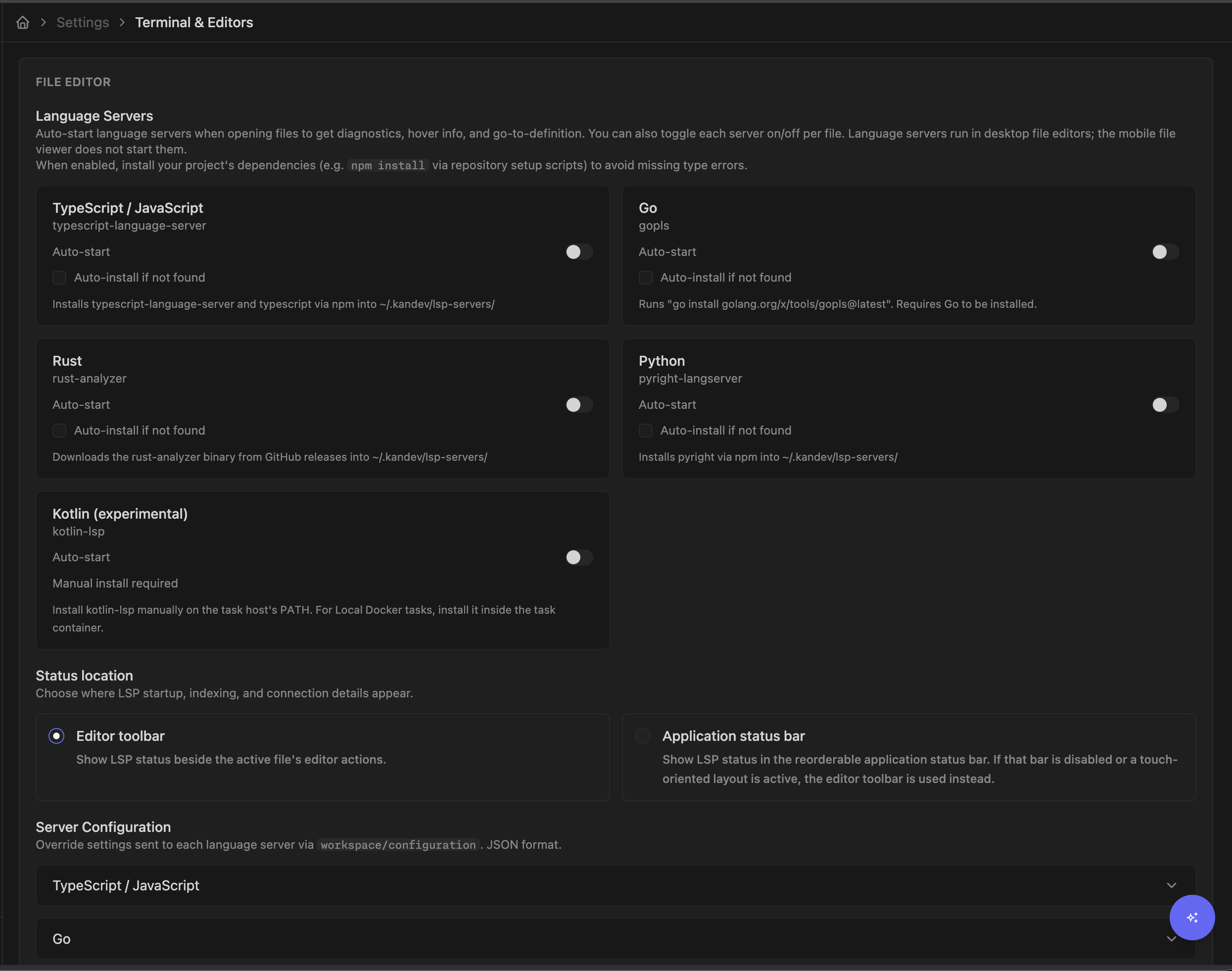
Language-server settings are part of Settings > Preferences > Terminal & Editors. Kandev currently registers servers for:
- TypeScript and JavaScript;
- Go;
- Rust;
- Python;
- Kotlin through the official
kotlin-lsp. Kotlin support is experimental because the upstream server is still alpha.
Auto-start and auto-install are off for every language by default. Enable only the languages used by the workspace, then save settings. Each language card keeps its installation command, prerequisites, and managed destination visible next to the auto-install setting, including for touch and keyboard users. Open the language-server control to inspect its status and use the explicit Start, Stop, or Retry action. Browser-local storage remembers manual enablement for that session and language. If you stop an auto-started server, it stays off for that session and language in the current browser tab, even if a matching editor reopens, until you explicitly start it again or reload the page. Kandev disconnects an unused server connection after two minutes.
Status location defaults to the active file's editor toolbar. On a fine-pointer desktop with Show status bar enabled under Settings > Preferences > Appearance > Status Bar, you can instead place it in that bar; the item follows the active supported file and is absent on unsupported files and non-file panels. Turning the status surface off moves the item back to the editor toolbar without overwriting its saved location. A touch-oriented tablet also keeps the saved preference but uses the 44 px editor-toolbar control and bottom drawer. The phone file viewer has no LSP control.
Language servers run beside the project on the task host, with the task workspace as their working directory. V1 supports Local PC and Local Docker tasks. Kubernetes, SSH, Sprites, and remote-Docker tasks show an unsupported-executor state instead of starting a server; an LSP request alone does not launch or resume those task resources. The desktop Monaco editor wires diagnostics plus completion, hover, definition, references, signature help, and semantic tokens when the server advertises them. TypeScript/JavaScript built-ins remain available to other sessions and models, and for features the active external server does not advertise or Kandev does not replace. After a file is successfully saved, Kandev sends its latest content change before notifying an active server that requested save synchronization; a failed save sends no save notification. The mobile file viewer does not start language servers in the background.
Only enable Kotlin language support for repositories you trust. Kotlin project import can evaluate Gradle or Maven build configuration on the task host; use a disposable Local Docker executor when the repository or its build files are untrusted.
Server lookup checks the task host's PATH and its ~/.kandev/lsp-servers directory. The managed cache resolves ~ from the same task HOME used to execute installer commands, including executor-provided environment overrides. Auto-install uses different toolchains:
- TypeScript/JavaScript and Python install npm packages into Kandev's language-server storage;
- Go runs
go install ...@latestand therefore needs a working Go toolchain. Result discovery followsGOBIN,GOPATH, and the task user's default Go workspace, including%USERPROFILE%\go\binon Windows; - Rust downloads a release for supported macOS or Linux, x86-64 or ARM64 task hosts. The Editors checkbox is a global preference; agentctl applies it only when the active task host supports the installer. A Windows Local PC task therefore needs a manual installation, while a Linux Local Docker task can auto-install Rust even when Kandev itself runs on Windows. If the selected task host has no supported installer, its status directs you to install the server manually even before you enable auto-install;
- Kotlin is manual-only. Follow the official Kotlin LSP installation guide, then verify
command -v kotlin-lspandkotlin-lsp --versionin the task environment.
For a Local PC task, start Kandev from an environment whose PATH includes the server executable. For a Local Docker task, the host installation is not visible: add the executable and its runtime requirements to the executor image or prepare script, then recreate the task container. A Kotlin server in a Local Docker task must therefore be resolvable by command -v kotlin-lsp inside that container. If a managed installation fails, the language-server status preserves the detailed installer output after the connection closes.
The default Go server configuration enables semantic tokens. A custom language-server configuration must be a JSON object; Kandev returns it through the language-server workspace configuration request and notifies an already-running server immediately after a saved change. Installing a language server does not install project dependencies or make an unsupported language available. If the task host cannot launch a discovered executable, the editor shows a localized start-failure status while the detailed execution error remains in backend logs. Check the backend log/status, executable PATH, supported host platform, toolchain/network access, project dependencies, and that the file belongs to the active task worktree.
The status surface separates process startup, the LSP initialize request, and server-reported background project analysis. Server process started means the executable is running but has not yet answered initialize; definitions and references across files remain unavailable during that stage. After one minute, Kandev calls out the long wait without stopping the server. For Kotlin, a Gradle project import is one possible cause, especially in a large or multi-module codebase. Stop remains available throughout.
Kandev does not impose an automatic initialization timeout or invent a percentage or ETA. Some valid project imports take several minutes, and LSP has no universal indexing-progress contract. When a server reports standard work-done progress, Kandev shows its title, message, percentage, and concurrent work-item count when available. Those values describe only the work item the server reported; its completion does not guarantee that every cross-file definition or reference is ready. If cross-file navigation is still incomplete, leave the server running while its project model warms up, or stop it explicitly if the wait is unexpected.
Task-owned browser continuity is on by default in shipped profiles. The restart-required features.lspBrowserContinuity runtime flag remains as an operator kill switch; an explicit false override restores browser-owned cleanup. With continuity enabled, each browser window owns an independent lease for the task-host language-server process. Closing a browser window or losing its network connection detaches the window while the lease continues to drain server messages. Reopening the task can reattach to that lease without a second initialize; duplicated tabs and other windows receive independent leases. Current diagnostics are cleared on detach and restored only after the editor resends its open files.
Stop releases that window's lease, and closing the last editor releases it after two minutes. Closing the browser retains a detached lease for up to one hour; reopening it resets that deadline, and an attached editor has no expiry deadline. Expiry releases the language server and lets normal task-host cleanup resume. Archiving or deleting the task starts background runtime cleanup that releases its leases. Stopping the task runtime or Kandev also releases its leases. Kandev allows eight active or detached leases by default; operators can change that startup limit with KANDEV_LSP_MAX_CONNECTIONS. If the limit is reached, a new request is rejected while every lease is attached. When a detached lease is available, Kandev evicts the one detached longest. After expiry, eviction, or a backend restart, the next eligible connection starts a fresh server and project analysis must run again. With continuity disabled by the kill switch, closing the browser connection reaps its process as before. If the toolbar says the server is unavailable, distinguish a missing task-host binary from an unsupported executor or the active-lease limit before retrying.
During a temporary browser-to-backend transport failure, the status changes to Reconnecting while Kandev attempts to reattach; browser closes 1005 and 1006, backend restart close 1001, and backend transport close 4009 do not prove that the language server exited. A confirmed server process exit uses 4006 and shows the server-exited state with Retry. Close 4010 means the task runtime stopped, so Kandev ends that lease without reconnecting it.
Integrated terminal
The task terminal is a PTY in the task environment. Local tasks run through the local environment; Docker, SSH, and other remote executors route the terminal to their configured runtime.
When the workspace uses managed GitHub credentials, a new terminal receives the same task-scoped Git and GitHub CLI routing as its agent. Inherit executor Git credentials leaves that routing to the selected executor instead. The environment is fixed when the PTY starts, so reopen a terminal after a session resume or credential-policy change.
On desktop, select + > Terminals > New Terminal. Parked terminal sessions can appear in the same menu for reopening. The tab context menu offers Rename and Terminate, not a separate Close action. Selecting the tab's X deletes the terminal and asks for confirmation when it is busy. Removing the panel through layout management can instead park it and keep its PTY alive; terminating a live terminal or deleting a parked entry destroys it. On mobile, select Terminal in task navigation and use the terminal picker to create another.
When you scroll up in a task terminal or desktop dev-server output, select Jump to latest output to return to the newest output. The action disappears at the bottom. New output does not pull you away from the scrollback you are reading.
Do not confuse a user terminal with a CLI-passthrough agent tab: both use PTYs, but only the agent tab is the agent's native interface. Cmd/Ctrl+J toggles the bottom terminal area.
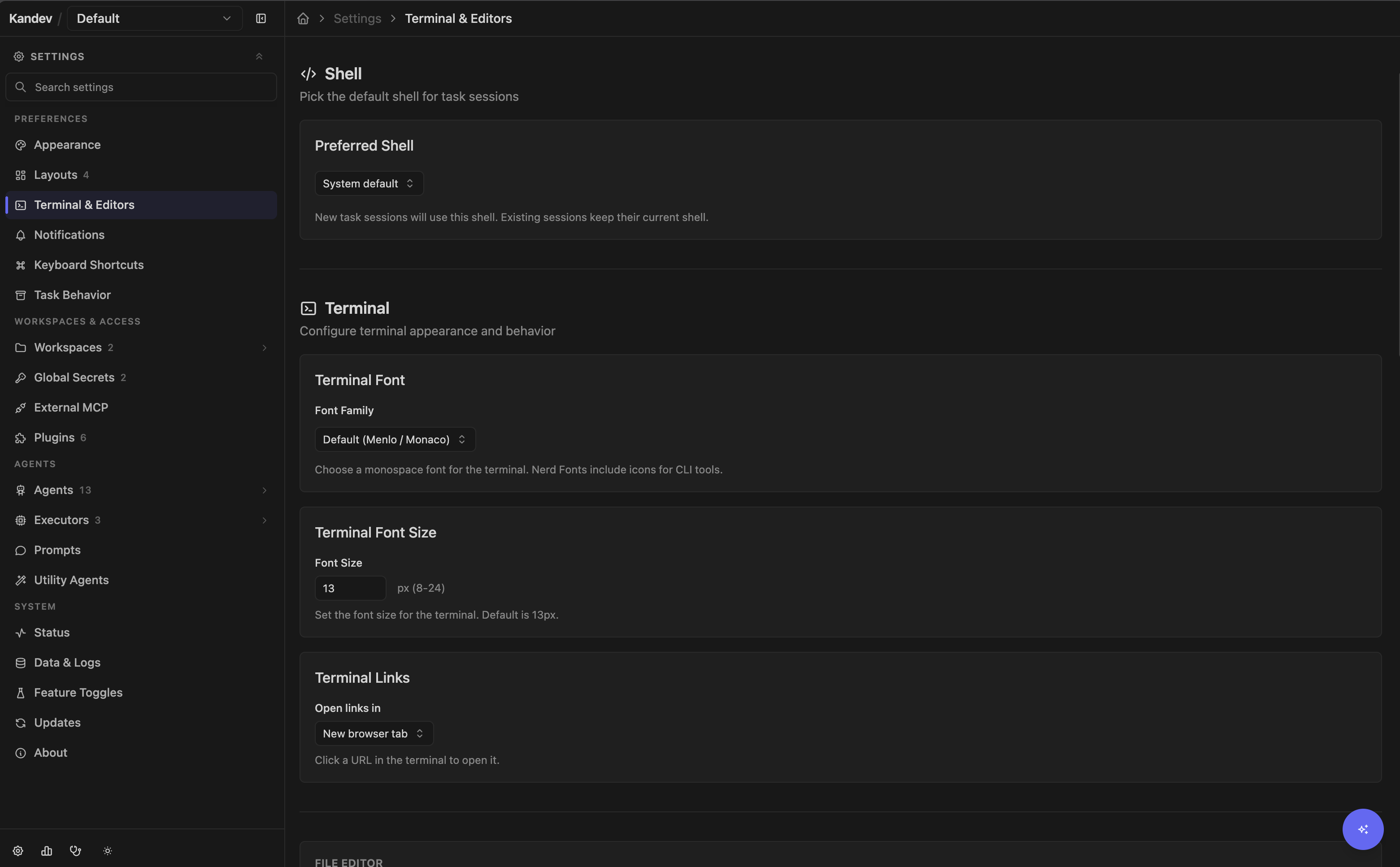
Open Settings > Preferences > Terminal & Editors (/settings/preferences/terminal-editors) to configure:
- preferred shell, which defaults to the system shell; the built-in choices are zsh, bash, and sh on macOS/Linux, and PowerShell (
pwsh), Windows PowerShell, and cmd on Windows, plus a custom executable; - terminal font, with a default Menlo/Monaco-style stack;
- font size, default 13 px and allowed range 8–24 px;
- URL handling, which defaults to a new browser tab and can instead use Kandev's built-in browser panel.
Shell changes apply whenever a new or restarted terminal is created, including inside an existing task. Only an already-live PTY keeps its current shell. A custom shell must exist in the task environment. Fonts render only when available to the browser. Commands can behave differently from your login shell because the executor may use another user, PATH, credentials, working directory, or startup files.
If no terminal can be created, wait for the task environment to become ready and confirm its executor is reachable. If a reopened terminal is dead, create a new one; the original PTY or remote connection may have exited.
Choose the right surface
| Need | Use |
|---|---|
| Disposable question or experiment | Quick Chat |
| Board history, branch, review, dependency, or PR | A normal task and workflow |
| Small generated title, summary, or description | Utility agent |
| Reusable task-chat instructions | Saved prompt |
| Dictate into chat | Voice Mode |
| Browse or edit task files | Files and editor integration |
| Diagnostics for supported languages | Language server |
| Run a command in the task runtime | Integrated terminal |
Related: Use Kandev, Sessions and review, Agents and profiles, and Integrations.