Kandev documentation
Plugin Marketplace
Discover and install kandev plugins from the in-app catalog, keep them updated, add a team or corporate source, and publish your own plugin to the official catalog.
The marketplace is a discoverable, curated catalog of kandev plugins you can browse and install from inside the app, no tarball URL required. It is assembled from one or more sources: kandev ships with the official source enabled by default, and you can add team or corporate sources alongside it.
This page covers using the marketplace (browse, install, update, add sources) and publishing a plugin into it. For what plugins are and how the install pipeline, enable/disable, and security posture work, see Plugins. For building one, see Authoring a plugin.
Like the rest of plugins, the marketplace ships in the base product with no feature flag to turn on; Settings > Plugins is always available in the sidebar.
Quick path
- Browse and filter the catalog.
- Select Install and review the package result.
- Update installed plugins only when you approve the new version.
- Add a team source only when you trust its maintainer.
Sideloading still works. The marketplace only adds discovery. Installing a plugin by URL or by uploading a
.tar.gzis unchanged and always available, even with every source disabled or offline, see Plugins → Installing a plugin.
Using the marketplace
Settings > Plugins has two tabs:
- Installed: the plugins on this instance, with Enable / Disable / Uninstall and an Update button when a newer version is available.
- Browse: the merged catalog across all enabled sources.
When canvases are enabled, a Canvases tab appears beside these tabs. It uses the same configured sources but keeps canvas installation separate from native plugin installation. Canvas installation is workspace-scoped and is available to an authorized workspace user. Native plugin management remains administrator-scoped.
Browse and install
Open Settings > Plugins > Browse. Each plugin shows as a card with its name, description, author, categories, source repository link, latest version, and GitHub star count. To narrow the list:
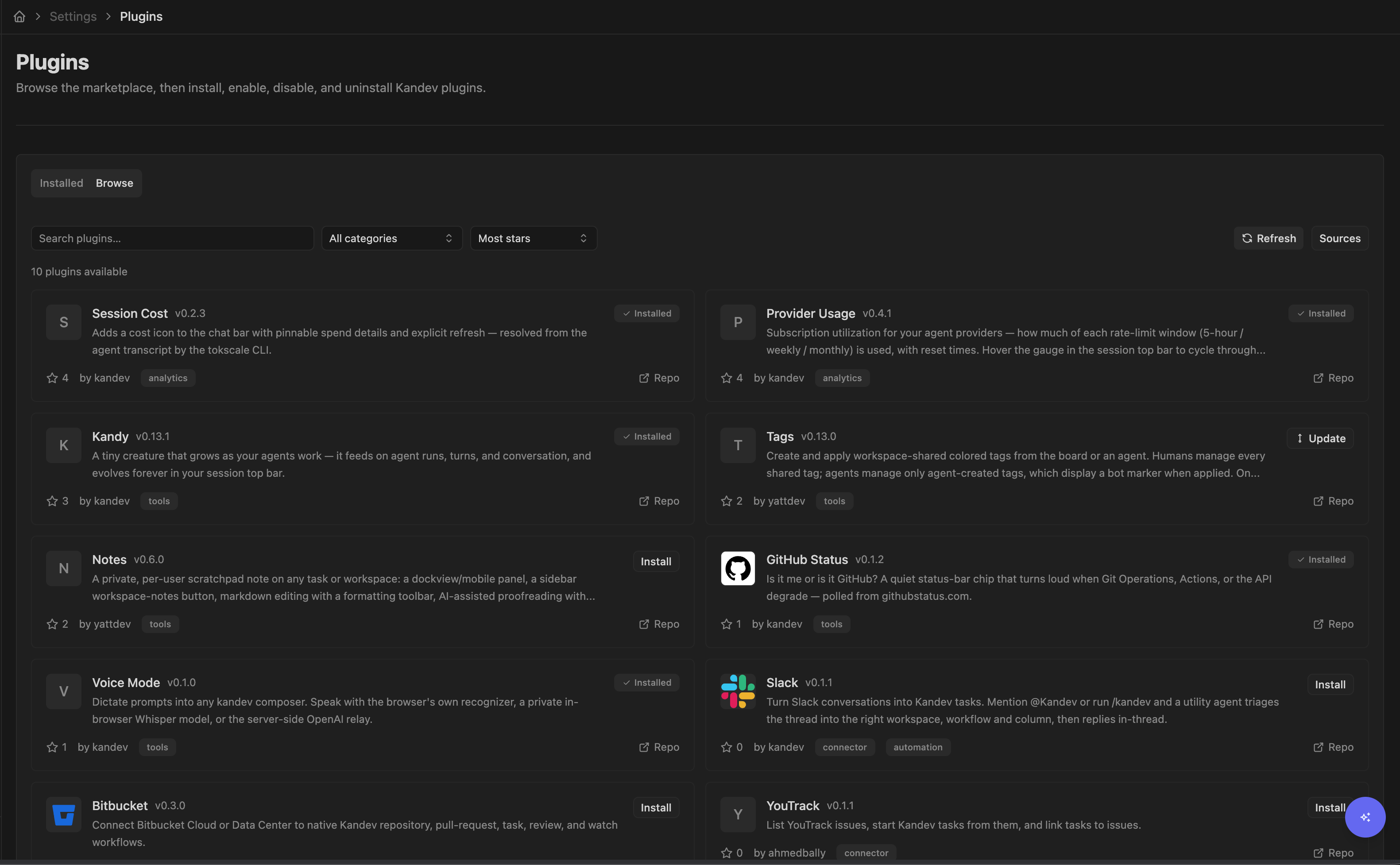
- Search: type in the search box to match plugin name or description.
- Category: filter to a single category with the category dropdown.
- Sort: Most stars (default), Recently updated (by latest release / repo activity), or Name.
The catalog attributes a native plugin to the owner of its curated
repository, not to the author field in its manifest. First-party
kdlbs/kandev-plugin-* repositories show by kdlbs, and a curated community
repository shows the contributor or organization that owns it. The manifest
author is shown on an installed plugin's Manifest card as Declared
author; that label records what the package declares, not a verified
publisher identity. For an additional source, the metadata is only as
trustworthy as the maintainer who publishes it.
Stars are a sort hint, not a quality score. kandev collects no download or usage telemetry, so there is no "most installed" metric; ranking is GitHub stars only, and "Recently updated" surfaces new or actively maintained plugins that high-star incumbents would otherwise bury.
Click Install on a card to install it. This resolves the entry to its
latest release tarball and runs the same verified install pipeline as
install-by-URL (POST /api/plugins/install), see Plugins → Installing a
plugin for the exact steps and integrity
checks. A card for a plugin you already have at the latest version shows
Installed instead of an install button.
Plugin-provided icons render on the cards. A plugin that ships an icon (via the
manifest's icon field) shows it; otherwise the card falls back to a neutral
letter tile.
Browse and install canvases
Open Settings > Plugins > Canvases after the canvas feature is enabled. Choose the target workspace, then search, filter, and sort the catalog. The first registry preview is the cover. Open a card to review its ordered preview gallery, author, license, compatibility, repository, and declared permissions. Use Review and install to inspect the exact package before confirmation.
The install dialog also accepts a local .tar.gz upload or an HTTPS direct
link. These paths do not need a registry listing or preview images. All three
paths inspect the package and show permissions before creating a new workspace
canvas. A successful install shows Open canvas. A failed or expired review
must be reviewed again and cannot silently install different bytes.
Registry previews are remote listing metadata. Kandev does not execute an image or canvas application in the detail view, and preview URLs are not package permissions. A broken image has a placeholder and Retry; it does not block package inspection or installation.
Keep plugins updated
Every row on the Installed tab shows the plugin's latest known marketplace version next to its installed version (e.g. "Latest v2.1.0"), so you can see version drift at a glance, not only when an update is available. A plugin that isn't in any configured source shows a "not in the marketplace" hint instead. That hint only appears when the check actually reached every enabled source: if one of your sources was unreachable, or you have no source enabled at all, the plugins it carries are simply left blank rather than reported as removed, and the header explains what went wrong.
This check runs once when the page loads. Select Check for updates to clear the marketplace cache and retrieve current versions without reloading the page. Sync remains a separate action that reconciles your local plugins folder.
The page requests the catalog from your Kandev backend. The backend caches each source's index for five minutes, so a page reload during that time does not fetch it again. The official index is a static GitHub Pages file; loading it does not call the GitHub Releases API.
While a check is running, the header shows a "Checking for updates…" indicator. After the check completes, the header shows the last check time. If the marketplace cannot be reached, an inline error explains the problem. Your installed plugins and their Enable, Disable, and Uninstall actions remain available.
Each installed row also has a visible Settings link. Select it to open the plugin's settings page, where you can change any configuration declared by the plugin.
When the marketplace advertises a newer version than the one you have
installed, the row shows an Update to v<version> button with the primary
action color. Clicking it reinstalls the newer tarball through the normal
pipeline; while it's in progress the button shows a spinner and
Enable/Disable/Uninstall are disabled. On success the version and button
refresh; on failure an inline error shows the reason and the button stays
clickable so you can retry.
Updates are never automatic from this button; kandev surfaces the newer version and waits for an explicit click. Separately, an opt-in background auto-updater can install newer versions for you; see Auto-update (opt-in) below for the instance-wide and per-plugin toggles. There are no update channels, version pinning, or scheduled maintenance windows in either case.
Auto-update (opt-in)
Beyond the manual Update button, kandev can update installed plugins in the background, off by default. An instance-wide "Automatically update plugins" switch (Settings > Plugins) sets the default for every installed plugin; each row also has its own switch that can override the default either way, with a Reset control to clear the override and inherit the default again.
Only plugins that are currently active and opted in are eligible, on a periodic background sweep. A disabled or errored plugin is never auto-updated and stays on its installed version until you re-enable it. A failed auto-update behaves exactly like a failed manual one: the installed version is left untouched, or the plugin lands in the same Error state a failed manual update would.
Add a team or corporate source
The Sources button on the Browse tab opens the Marketplace sources dialog. The official kandev source is present by default, badged Official, and cannot be removed. To add another:
- Click Sources.
- Enter a name (e.g.
Acme Internal) and the URL of anindex.jsondocument (see Host your own source below). - Click Add.
Its plugins are then merged into the Browse tab alongside the official ones.
You can enable/disable a source without deleting it, and remove any non-official
source. Adding a source is an explicit act of trust in its maintainer, much
like brew tap-ing a third-party tap.
Notes:
- When the same plugin
idappears in more than one source, the first configured source wins (the official source is always first); later duplicates are hidden. - A source that is unreachable or serves malformed JSON is reported as degraded: its entries are omitted, but the healthy sources still load.
- Configured sources persist across restarts; the fetched catalog itself is a short-lived cache and is re-fetched on demand.
Publishing a plugin
Getting a plugin into the catalog follows a one-repo-per-plugin model, mirroring Obsidian's community-plugin registry: each plugin lives in its own public GitHub repository and publishes its package as a GitHub Release asset; the official catalog is a curated pointer list that names which repos are included. The descriptive metadata (name, description, version, tarball URL, stars) is read from the repository at your latest release. Package verification checks the archive's identity and digest, not display-name parity with the repository manifest. Catalog attribution follows the owner of the curated repository, so a manifest cannot override the listing's catalog attribution.
1. Publish the plugin package as a release
Package your plugin as usual (see Authoring a plugin → Packaging) and cut a GitHub Release. One asset is required; a second is optional:
<id>-<version>.tar.gz(required); the plugin package. It carries its own internalchecksums.txtcovering every packaged file, which the install pipeline verifies on extraction.checksums.txt(optional); the SHA-256 of the tarball itself. The registry always computespackage_sha256from the downloaded archive and, when this release-level file is present, requires its digest to match before publishing.
The release must pass the standard package integrity gate. The
kdlbs/kandev-plugin-template
starter repo is the recommended way to bootstrap a repo with the right layout.
Its .github/workflows/release.yml produces both assets automatically when you
push a version tag.
2. Add an icon (optional)
Add an icon: field to your manifest.yaml; a package-relative path to an
image your package ships (for example icon.svg). The catalog resolves it to
your icon and renders it on the plugin card; without it, the card shows a letter
tile. See the Plugin manifest reference.
3. Submit to the official catalog
The official source is curated: a plugin appears only after a maintainer merges a PR that lists it.
-
Fork
kdlbs/kandevand add one entry toplugin-registry/plugins.yamlpointing at your public repo:plugins: - id: my-plugin # MUST equal the `id` in your plugin manifest repo: your-org/your-plugin-repo # owner/name categories: [productivity] # optionalKeep
idequal to your manifestidand unique in the file, and name your release package<id>-<version>.tar.gzto match, so the index resolves the right asset.categorieshere are free-form curation tags for catalog filtering (not the manifest's category enum).featuredis a maintainer-only pin; leave it out of submissions. The pointer-list shape is defined byplugin-registry/schema.json. The catalog attributes the listing to the owner inrepo. Your manifestauthorstays your own declaration and appears on the installed plugin's Manifest card as Declared author. -
Open a pull request. The registry index-build workflow runs on your PR (build + tests, no Pages deploy), resolving your entry against the GitHub API. Your latest release must publish the exact
<id>-<version>.tar.gzasset. The builder verifies its internal checksums and managed manifest and requires the manifest ID and version to match the curated entry and release tag. A release-levelchecksums.txtis optional; when present, its package digest must also match. -
A maintainer reviews and merges; maintainer approval is what gates the official catalog. The index-build workflow then picks up your entry and your plugin appears in the in-app catalog on the next build.
After a repository is curated, Kandev checks its latest release centrally every three hours. A valid new release targets publication in the official index within four hours under normal GitHub Actions scheduling, without a Kandev source commit or manual rebuild. GitHub schedules can be delayed or dropped, so four hours is an operational SLO rather than a hard guarantee; the daily 06:00 UTC rebuild remains the fallback and star-count refresh.
The checked-out registry list is the only allowlist. Plugin repositories do not
receive Kandev credentials and cannot send a repository or deployment payload.
Before publication, Kandev requires the exact <id>-<version>.tar.gz, verifies
its internal checksums and managed manifest, matches the manifest ID/version to
the curated entry and release tag, computes the package SHA-256, and compares an
optional release-level checksum when present.
If one latest release is missing or invalid, the official builder retains that still-curated plugin's previous record while valid peers may advance. A provider-wide failure leaves the published catalog unchanged. Maintainers can inspect the failed GitHub Actions run, annotations, and step summary; the daily build retries the complete catalog even when no release poll succeeded.
Ranking in the catalog is GitHub stars only: there is no download or usage
telemetry to game. Full submission details are in
plugin-registry/README.md.
Host your own source
You do not have to PR into the official registry to share plugins internally.
Any URL that serves an index.json document of the catalog shape can be added
as a marketplace source (see Add a team or corporate
source), and its plugins merge into the Browse
tab alongside the official ones. This is the recommended path for a team or
corporate registry, no PR to the main repo.
The index.json document is the fetch contract between a source and kandev.
One way to produce one is to adapt the official registry's pointer list,
build-index.mjs,
Go package verifier, and GitHub Actions workflows. Together they resolve each
listed repo's latest release into a verified catalog record and publish the
generated index.json to GitHub Pages. Point kandev at that Pages URL. The
document shape, the build pipeline, and the source data model are specified in the
plugin marketplace spec.
Related: Plugins, Authoring a plugin, Plugin manifest reference.